The Order Schedule Detail grid is one of the most important displays in all of StockIQ, as it's where your various inventory parameters come together to generate order suggestions, including:
- Your current on hand
- Open demands
- Forecast
- Dependent Forecast
- Open PO's
- Your safety stock
- Holidays, smoothing and supplier capacities
- Order Cycles
Columns
The key aspect of the grid is that it's showing you a day-by-day (or week-by-week or month-by-month) projection of your inventory levels, and based on those projections, the orders that must be placed to keep you at or above your safety stock level, in accordance with your order policies.
Period Date: If you are looking at daily resolution, this is the date of the inventory projection. If you are looking at weekly or monthly, it is the beginning of the week or month period.
Demand
Actuals: Any open firm demands, such as customer orders, pending transfer pulls, or pending work order allocations
Operational Forecast: Sometimes labeled "Independent Forecast", this is the independent forecast from Forecast Manager
Firm Dep: Only shown when there is some dependent forecast from a spoke or parent assembly, this number is the amount of dependent forecast that is in response to firm requirements on the parent, e.g. open demands. Suggested quantities due to forecast only are not included in this amount. This column is particularly important when you have the Allow Forecast Backorders option disabled in Global Replenishment Settings, since it allows for components to be planned properly at lower levels when inventory is running short (or out).
Dep. Fcst: Only shown when there is some dependent forecast from a spoke or parent assembly, this is the dependent forecast from the parents, which is an additional form of demand that reduces your projected inventory. The sum of Dep. Fcst and Firm Dep. columns in the order schedule are your TOTAL dependent forecast for a given product.
Expiration Fcst: Only applicable when you have expiring lots, this is the anticipated quantity that will be expiring on any given date, based on lot dates and current usage rates of those items.
Supply
On Order: Pending arrivals of open PO's
Load Balancing: This column is only shown if you are doing load balancing between two or more suppliers. Any number shown represents the quantity that is going to be purchased by other suppliers in the load balancing record, so that you can correctly see what projected available will be if purchases are made as expected from those other suppliers.
Planned Orders
Release: Shows the quantity and date of when StockIQ suggests you release this order.
Ship: Shows the corresponding ship date for an order released on the release date, given the lead times provided to StockIQ.
Receipt: Shows the Planned Receipt Date for an order released and shipped on the associated dates, given the lead times provided to StockIQ. Note that this quantity is planned to arrive on this date, and then contributes to projected On Hand for that date.
Projected Inventory
On Hand: shows the projected on hand level calculated given all your supply and demand, including any suggestions made by StockIQ.
IMPORTANT: If you are looking at a weekly or monthly rollup, this is the level projected to be on hand at the END of the period displayed, e.g. the end of the week or end of the month.
Days: Your days of supply based on projected on hand, given average usage of that item at that point.
Balance: Your projected on hand quantity converted to an inventory value.
Prj Act Avl: Short for "Projected Actual Available", this value is what your on-hand levels are projected to be if you take none of StockIQ's order suggestions, and let this item run as it currently is.
Build To Order
The Build To Order Order Policy is special in that it generates a buy-to-order plan for the item it's assigned to, but a second, (hidden) Lot-For-Lot replenishment plan that is used to send dependencies to its components. To help with visibility into this "hidden" plan, you can add these columns from the "Build To Order" column group to your view:
BTO Firm Dep: Firm Dep. Forecast seen by the parent lot-for-lot hidden plan
BTO Dep Fcst: Dependent Forecast seen by the parent lot-for-lot hidden plan. Firm Dep plus this column are the total dependent forecast seen by the parent lot-for-lot plan.
BTO Release: Suggested releases correlating to the parent lot-for-lot plan
BTO Ship: Suggested ship dates correlating to the parent lot-for-lot plan
BTO Receipt: Suggested receipt dates correlating to the parent lot-for-lot plan
BTO On Hand: On-Hand quantity being projected by the parent lot-for-lot plan and all its demand, supply, and suggested receipts.
Flags & Colors
A few different colored "flags" can be shown in the Order Schedule depending on the data present:
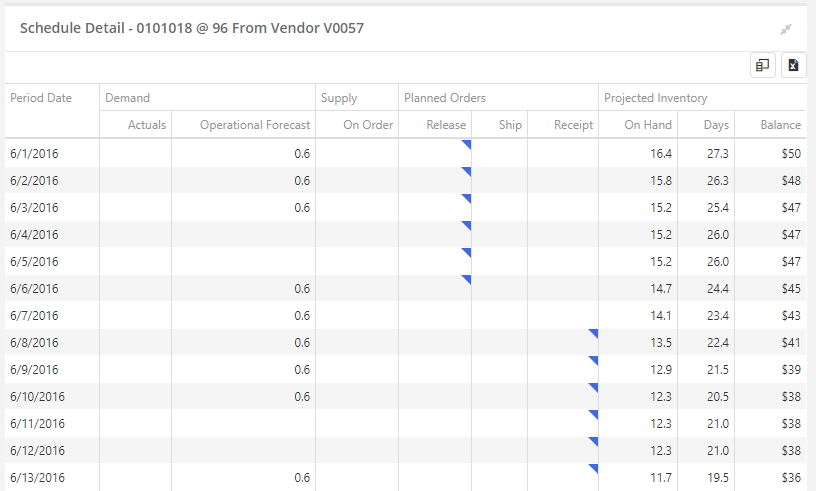
Release & Receipt Column - Blue Flag
Blue flags in the release and receipt columns indicate the days over which your "Days Coverage" or Order Cycle are covering you for the current order cycle. In this way, you can visually see what your Days Coverage or Order Cycle has done on your order schedule without having to count days on the grid.
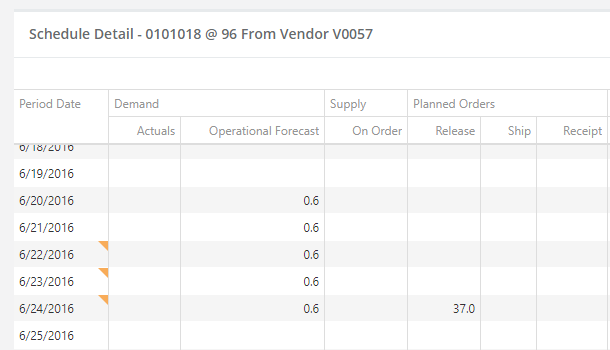
Period Date Column - Orange Flag
These flags indicate the presence of Site or Supplier holidays. See the Site Holiday and Supplier Holiday topics for more details on the implications of setting these holidays.
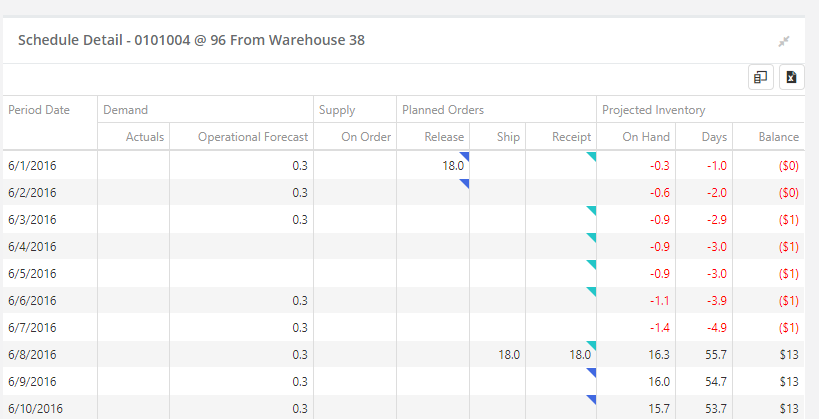
Release, Ship & Receipt Column - Cyan Flag
These Cyan (light blue) colored flags indicate the presence of a Vendor Schedule. If the flag is in the Release column, you have an order schedule. If it is in the Ship column, you have a Ship schedule, and if the flag is in the Receipt column, you have a Delivery schedule. The flags appear on the days that are NOT available for order/ship/receipt due to your schedule limitations.
This image shows an Vendor Schedule where deliveries are allowed on Tuesdays and Thursdays:
Context Menu, Simulation, and Locking
If you right-click on a row in the grid, you will get a context menu with a few options. These allow you to access the Order Schedule Simulation and Order Schedule Locking features.