When looking at the Order Schedule Detail, it is possible to run simulations on the schedule to see the impact of various changes.
The changes you can simulate are:
- Changes in Demand
- Changes in Supply
- Changes in Planned Receipts.
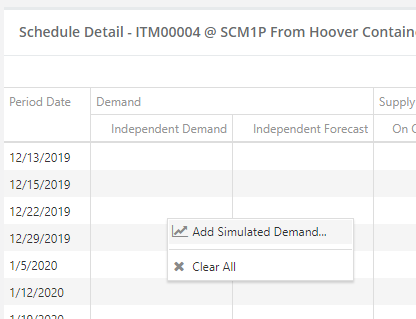
To run a simulation, right-click on one of the editable columns, and select the "Add..." prompt, such as "Add Simulated Demand..." or "Add Simulated Supply..."
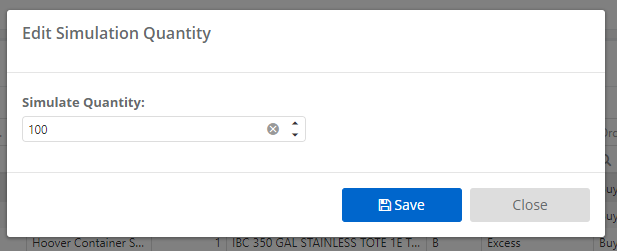
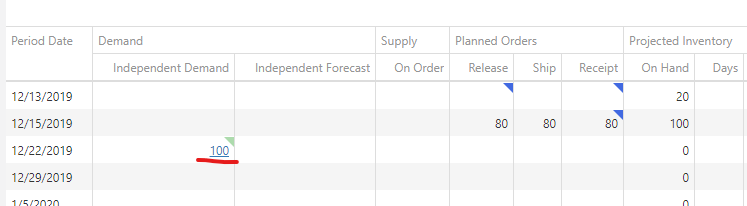
When you do so, you will get a popup that you can use to enter your quantity. Do so, click Save, and the simulated quantity will be shown with a green flag on the order schedule detail. The Order Schedule Detail will immediately recalculate itself to incorporate your new simulation:
You can edit or delete a simulated quantity by right-clicking on it again, and selecting whatever option you want:
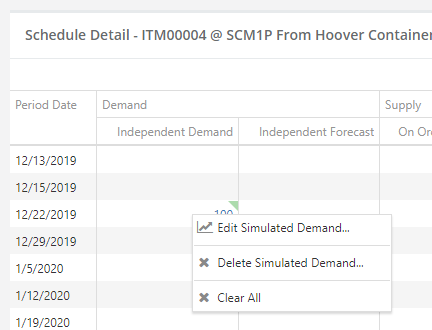
The Clear All option will remove ALL simulated quantities and restore the schedule to normal.
NOTE: No values are saved during simulation, so you do not need to always "Clear All" when you're done simulating - your stored replenishment plan will not be affected.