StockIQ includes the ability to adjust planning based on warehouse physical capacity constraints for particular items, and/or item shelf life limits.
This is for item-specific warehouse capacity limits. StockIQ can accept an overall warehouse capacity in the Site data feed, but this is typically a measure of cubic volume of the warehouse, whereas item-warehouse capacity is typically more about day or unit limits.
One such example is when you have limited space for large, bulky items like water heaters, washers, or other large industrial equipment. Typical short shelf life items are things like expirable grocery items such as milk and eggs. In each case, you have a practical limit about how much you can store, either in terms of a number of units, or a number of days of inventory based on the shelf life of the SKU.
Data Feeds
Warehouse capacity information can be fed to StockIQ in the interface feeds. Capacity and/or shelf life can be specified in terms of units, cubes, weight, pallets and a few other measures. For shelf lives, you can also specify the max capacity in terms of a number of days maximum capacity.
In addition to specifying capacity information, you should also configure the number against which you want StockIQ to create warnings in the Place Orders screen by configuring the "Capacity Comparison Quantity" in the Global Replenishment Settings screen.
Application Behavior
When provided this information, StockIQ will do several things:
- Max capacity information is displayed for the item in the Place Orders screen. It is made available in columns in the Place Orders grid, as well as in the "Details" form below the grid.
- If order quantities on the order list would take you above your capacity limits, the warning red flag is displayed in the Order Quantity cell, as well as a warning message. You can select which quantity against which you want StockIQ to compare for your warning in the Global Replenishment Settings page.
- When moving to step 3, StockIQ will run a validation to ensure no order quantities in the order will take you over capacity.
- If StockIQ detects that your capacity constraints will have an effect on your service level, and that it is constraining your max inventory level, the Safety Stock tab in Forecast Manager and Inventory Snapshot will show you a notification to this effect.
- When this happens, StockIQ is now planning "Max-Down" rather than "Safety-Stock-Up" as in normal - see the screenshot below.
- In particular, notice the "Effective Svc Level" that StockIQ calculates. This is StockIQ's prediction of the effective service level that you will be able to attain given the capacity-constrained max- and safety-stock levels.
- Also notice the "Capacity Constrained" safety stock shown, so you can compare to what the standard, large regular pull, and other methods would have been before the capacity constraint on SS was applied.
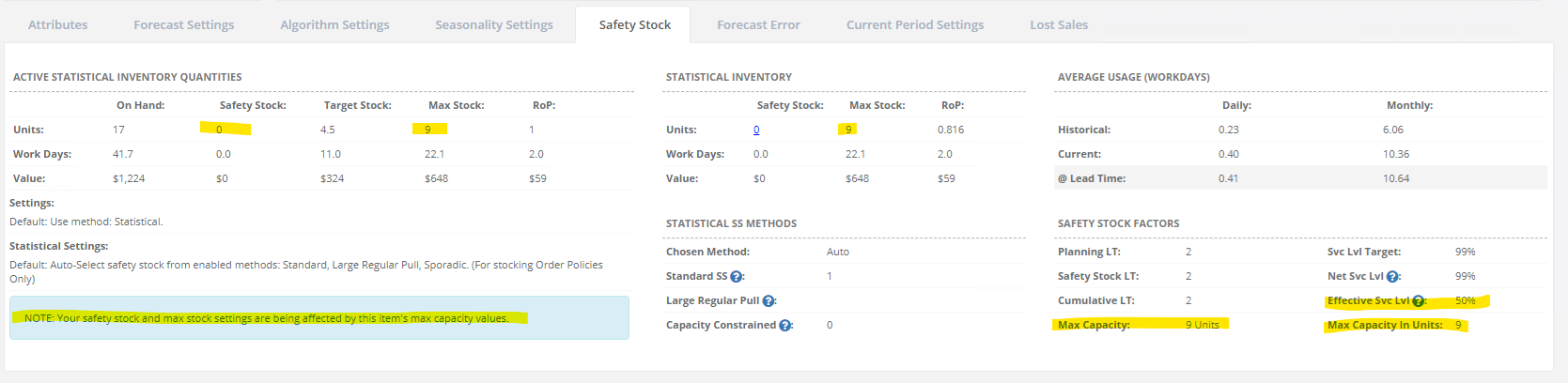
- Once this Capacity Constrained safety stock has been calculated and applied, ordering continues as normal - the order policies you've chosen will suggest orders to try and keep you at or above the active safety stock. The chief difference is that the active safety stock is now one that has been constrained by virtue of your maximum capacity values.
Calculation of Capacity Constrained Safety Stock
When you have this maximum capacity, StockIQ must figure out by how much to constrain your safety stock to ensure that your ordering won't take you above your maximums.
It does this by working backwards from the normal Max Stock calculation. Starting from the Max Stock level as defined by your capacity limits, StockIQ subtracts the Cycle Stock for this item to arrive at what the logical safety stock must then be. If that value is less than zero, it is capped at zero.