The following gives general instructions on how to set up PowerBI to import data from StockIQ Rest API's. You can find more information on available API's by visiting the REST API Reference
GET Request
-
Open Power BI Desktop. From the home tab select Get data > Web
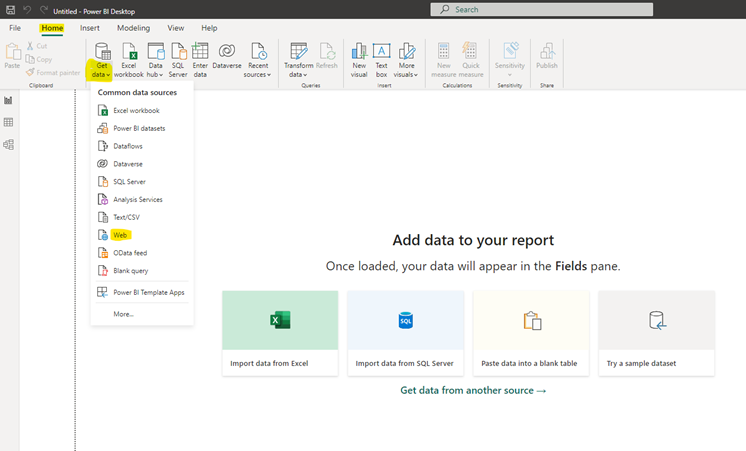
- Enter your StockIQ API URL Into the URL field. Click OK. example: https://contoso.stockiqtech.net/api/AlertDetail
Custom Report Example:
https://contoso.stockiqtech.net/api/CustomReportProducer?customReportId=1
Note: Support can provide you with the ReportId for your custom report.
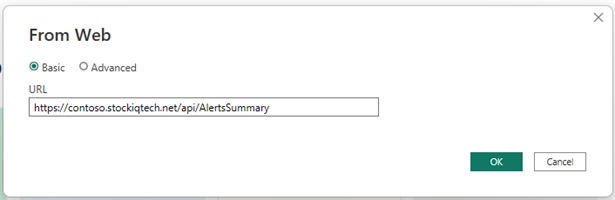
- Select Basic for the authentication type. Enter a StockIQ username and password. Click Connect.
Note: The SIQ User you select needs to be able to view the data you are trying to pull with the API. AlertsSummary is not a valid endpoint anymore, please use other endpoints listed in the help section.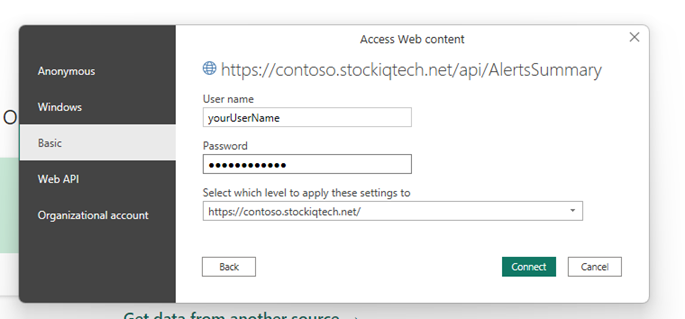
- Once your data loads in Power Query Editor select File > Save AS and give you data feed a name. Click the Close & Apply Icon
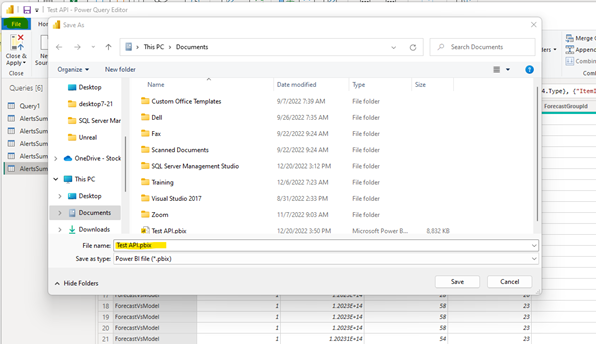
- Once your query changes are committed select File > Publish > Publish to Power BI. Push the query to a public workspace for example my Workspace.
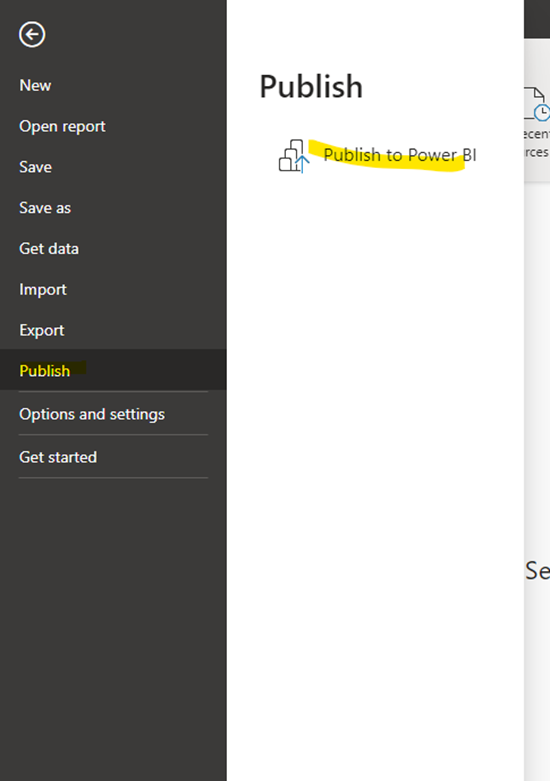
- Once your query is published click Open myquery in Power BI
Part 2 – Schedule data pulls in PowerBI
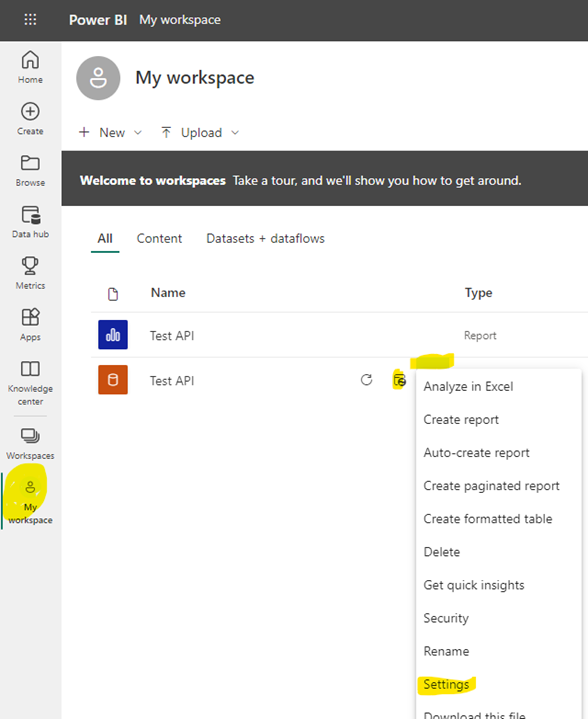
- Click My Workspace and select Settings from the dropdown on the data connections you want to schedule.
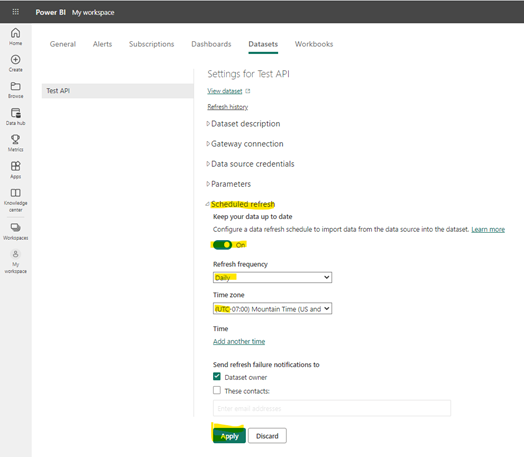
- Expand the Scheduled Refresh and choose a time you want the data to refresh. Click Apply
-
Integration should now be complete and your data can be used to build BI reports.
Trouble Shooting: If scheduled refresh is greyed out and the On selector icon is disabled double check the gateway connections & Data Source Credentials don’t have any errors. It may be necessary to reenter, your StockIQ credentials. Additional information: https://chanmingman.wordpress.com/2020/03/09/power-bi-scheduled-refresh-greyed-out/#:~:text=If%20you%20scroll%20further%20up,data%20source%20in%20the%20portal.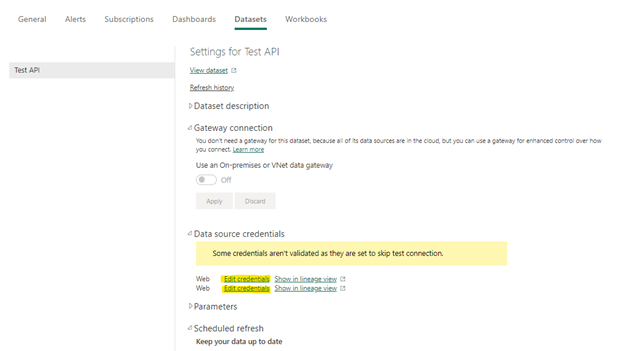
POST Request (using PowerQuery)
- Create a new report
- Clear old cached credentials:
- Data > Get Data > Data Source Settings > hit ok if a warning dialog pops up
- In Data source settings dialog select Global Permissions
- Clear all existing permissions > Close
- Create the new data source: Data > Get Data > From Other Sources > Blank Query
- In the Power Query Editor
- Copy and Paste the code below: View > Advanced Editor. Edit as needed for desired API endpoint and body
- Set the Credentials:
- Hit Edit Credentials box when prompted to specify how to connect
- Anonymous > Connect
- Once you see data in the table hit Close and Load in the upper lefthand corner to save the query
- Once the query editor has closed, the table should automatically generate itself
Example A: Forecast Error Summary
let

    // Endpoint with query string
    url = "https://demo4.stockiqtech.net/api/ForecastErrorsSummary/fetchby/hierarchyNodeFilters/?itemHierarchyId=1&demandForecastSeriesId=1&nodeLevel=4",
    // API call with POST (empty body)
    response = Web.Contents(
        url,
        [
            Content = Text.ToBinary(""),   //  Forces POST, but empty body
            Headers = [
                #"Content-Type" = "application/json",
                #"Authorization" = "Basic <encoded auth here>"
            ]
        ]
    ),


    // Convert to string and parse as JSON
    rawText = Text.FromBinary(response),
    parsedJson = Json.Document(rawText),


    // Pull out the list of records from root or `data` field
    records =
        if Type.Is(Value.Type(parsedJson), List.Type) then
            parsedJson
        else if Record.HasFields(parsedJson, {"data"}) and Type.Is(Value.Type(parsedJson[data]), List.Type) then
            parsedJson[data]
        else
            {},

    // Find all distinct field names across all records
    allFields = List.Distinct(List.Combine(List.Transform(records, each Record.FieldNames(_)))),


    // Add missing fields with nulls
    normalized = List.Transform(
        records,
        each Record.Combine({
            _,
            Record.FromList(
                List.Transform(
                    List.Difference(allFields, Record.FieldNames(_)),
                    each null
                ),
                List.Difference(allFields, Record.FieldNames(_))
            )
        })
    ),

    // Turn normalized list into table
    result = Table.FromRecords(normalized)
in
    result
Example B: Underforecasted
let

    // Endpoint with query string (fixed URL)
    url = "https://demo4.stockiqtech.net/api/UnderforecastedPeriodDetail/fetchby/hierarchyNodeFilters/?nodeLevel=4&itemHierarchyId=1&demandForecastSeriesId=1",

    // API call with POST (no body, just empty content)
    response = Web.Contents(
        url,
        [
            Content = Text.ToBinary(""),   //  forces POST with empty body
            Headers = [
                #"Content-Type" = "application/json",
                #"Authorization" = "Basic <encoded auth here>"
            ]
        ]
    ),


    // Convert to string and parse as JSON
    rawText = Text.FromBinary(response),
    parsedJson = Json.Document(rawText),


    // Pull out the list of records from root or `data` field
    records =
        if Type.Is(Value.Type(parsedJson), List.Type) then
            parsedJson
        else if Record.HasFields(parsedJson, {"data"}) and Type.Is(Value.Type(parsedJson[data]), List.Type) then
            parsedJson[data]
        else
            {},


    // Find all distinct field names across all records
    allFields = List.Distinct(List.Combine(List.Transform(records, each Record.FieldNames(_)))),

    // Add missing fields with nulls (so table schema is consistent)
    normalized = List.Transform(
        records,
        each Record.Combine({
            _,
            Record.FromList(
                List.Transform(
                    List.Difference(allFields, Record.FieldNames(_)),
                    each null
                ),
                List.Difference(allFields, Record.FieldNames(_))
            )
        })
    ),

    // Turn normalized list into table
    result = Table.FromRecords(normalized)

in
    result